How to Create a Google Shopping Campaign
Learn how to create a Google Shopping campaign to help promote your products online.
![[Featured Image] A smiling small business owner sits in their tailor shop and creates a Google shopping campaign on their laptop.](https://d3njjcbhbojbot.cloudfront.net/api/utilities/v1/imageproxy/https://images.ctfassets.net/wp1lcwdav1p1/4cnFfUt4zUcSockY8eaKJD/e7b5d741d34196f5ab5315663099b10b/GettyImages-1366405736.jpg?w=1500&h=680&q=60&fit=fill&f=faces&fm=jpg&fl=progressive&auto=format%2Ccompress&dpr=1&w=1000)
Key takeaways
You’ll need a Google Ads account and a Google Merchant Center account to create a Google Shopping campaign.
Implementing Google shopping campaigns allows potential customers to learn about your products without having to click your ad.
Within your campaign, you can set preferences such as the daily campaign spending budget, networks where ads are shared, and types of devices campaigns can appear on.
You can align your campaign content to comply with Google’s shopping ads policies and meet Google’s professional and editorial standards to maximize visibility.
Discover the steps you need to take to create a Google Shopping campaign. Afterward, if you’re ready to learn about how to boost sales, enroll in the Google Digital Marketing & E-commerce Professional Certificate. You’ll have the opportunity to learn how to attract customers through digital marketing channels like search and email, analyze campaign performance using analytics, and build e-commerce stores in as little as six months. Upon completion, you’ll have earned a career certificate for your resume.
How to create a Google Shopping campaign
With a Google Ads account and a Google Merchant Center account, you can design a shopping campaign that works for you and enables you to track the performance of your products. Implementing Google Shopping campaigns allows potential customers to learn about your products without having to click your ad. Before creating your campaign, you need to link your Google Ads and Merchant Center accounts. If you don’t have existing Ads and Merchant Center accounts to link, begin by setting up your two accounts, then you’ll be able to follow along with the rest of the tutorial.
Here are the steps to create a Google Shopping campaign:
1. Start a new campaign.
In your Google Ads account, select the Campaigns icon and click Campaigns from the Campaigns drop-down menu. Next, select the + button, click New campaign, and select a default goal, or create your own objective for the campaign.

2. Choose your campaign type.
Now, select Shopping as your campaign type, and select your Merchant Center account with the products you wish to advertise.
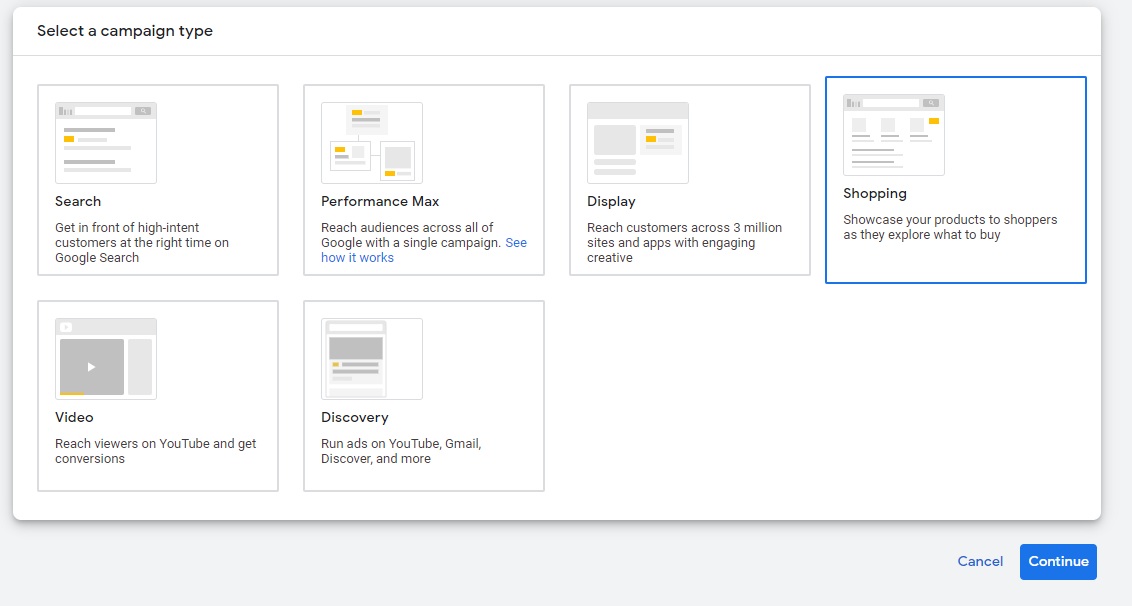
You can then select specific feeds from your Merchant Center account to include in your campaign. To determine which feeds are included in the campaign, organize feed options by the countries in which your product is sold or select specific feed labels from your Merchant Center account.
Are Google Shopping ads free?
No, Google Shopping ads fall under paid media. You can define a total campaign budget, and Google Ads will attempt to evenly distribute the spending over the duration of your shopping campaign.

3. Define your advertising preferences.
Within your campaign, you can set preferences in a variety of campaign components. These include:
Campaign name
Products advertised
Daily campaign spending budget
Networks where ads are shared
Types of devices campaigns can appear on
Ad locations
After setting your preferences, click Save and Continue.
4. Create an ad group.
Now, you’re ready to create your first ad group. To do this, enter an Ad group name and Bid, then click Save. Your Google Shopping Campaign is complete, and you will move to the products page.
Read more: How to Connect Analytics to Google Ads
Additional requirements for Google Shopping campaigns
As mentioned earlier, you need to have a Google Ads and Google Merchant Center account linked together to proceed with your campaign. Google also requires your campaign content to comply with shopping ads policies. Prohibited content includes dangerous products, inappropriate or offensive content, counterfeit goods, and products that enable dishonest behavior, such as hacking software. Additionally, your ads must meet certain professional and editorial standards to be promoted. This means your ads must be easy to understand and interact with, and lead customers to a properly functioning website.
You go-to library for skill-building
Subscribe to Career Chat on LinkedIn to get weekly updates on popular skills, tools, and certifications. Build or refresh your digital marketing skills with our other free resources:
Watch on YouTube: 5 AI Tools That Will Transform Your Digital Marketing Strategy
Bookmark for later: Digital Marketing Terms Every Marketer Should Know
Take a quiz: Digital Marketing Skill Assessment
Accelerate your career growth with a Coursera Plus subscription. When you enroll in either the monthly or annual option, you’ll get access to over 10,000 courses.



Coursera Staff
编辑团队
Coursera 的编辑团队由经验丰富的专业编辑、作者和事实核查人员组成。我们的文章都经过深入研究和全面审核,以确保为任何主题提供值得信赖的信息和建议。我们深知,在您的教育或职业生涯中迈出下一步时可能...
此内容仅供参考。建议学生多做研究,确保所追求的课程和其他证书符合他们的个人、专业和财务目标。